

Before you start
This guide describes Oh No! Parent Control for Ubuntu 26.04 Desktop. Follow the setup instructions to install the app and restart your computer before continuing.
A parent uses a local administrator account; each child uses a separate local standard account. The Parent App manages those existing accounts; it does not create them. Newly created eligible local child accounts are discovered after installation, so you do not have to reinstall the app to manage them.
Parent-control features work without an internet connection. Optional feedback needs a connection. A one-time grant means parent-approved extra time. Grant-only mode uses zero daily minutes, so access requires an active grant. The request station is the dedicated request session available from sign-in.
Quick Start
Here is a typical setup: give a child 90 minutes each day, block one app completely, and let the child ask for extra time when needed.
- Sign in to an administrator account and open Oh No! Parent Control.
- Under Child account, choose the child you want to manage.
- Open Screen Limits, turn on Screen Time Limit, and set Daily Time Allowance to 1.5 hours.
- Open App Limits. Set apps the child should never open to Hard Blocked. Set apps that may be allowed with an approved request to Soft Blocked.
- The child signs in and uses the computer normally. Their remaining time appears in the desktop panel.
- Before time runs out, the child selects the remaining-time control, chooses a duration and an approving parent, and selects REQUEST (named Request access for assistive technology). After lockout, use the request station.
- The selected parent enters their password in the system authentication prompt. Once approved, the extra time is ready to use.
Changes in the Parent App save automatically. A failed change is not shown as saved; check its reported status before trying again. Save the child's work before changing app rules, because blocked apps can close.
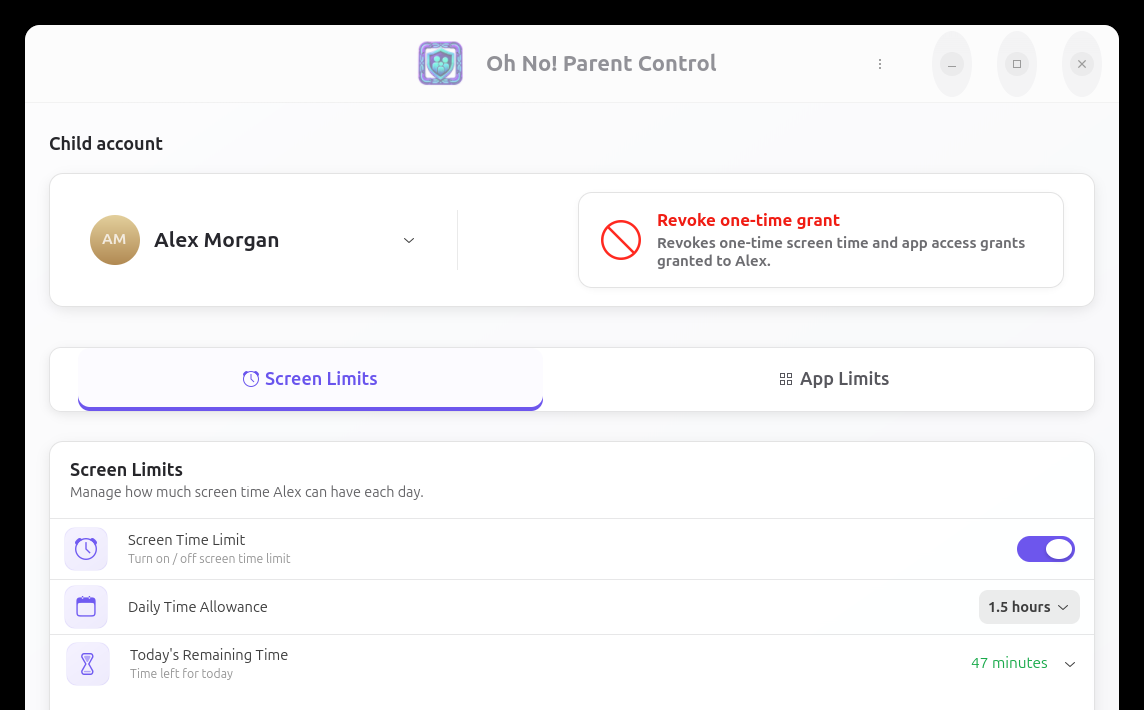
The screenshots use sample accounts. Names and available apps will be different on your computer.
Parent App
The Parent App is available to administrator accounts. Use it to manage one local, non-administrator child account at a time.
Choose a child
Use Child account at the top of the window. Screen-time settings, app rules, and extra-time grants are separate for each child.
If a child does not appear, make sure the account is a local standard account. Administrator accounts, system accounts, remote accounts, and the dedicated request account are not shown as children.
Set a daily screen-time allowance
On Screen Limits:
- Turn on Screen Time Limit.
- Choose a Daily Time Allowance, from 0 minutes through 24 hours.
- Check Today's Remaining Time to see how much time the child can currently use.
A 0-minute allowance is grant-only mode. The child can use the account only while approved extra time is active, including another sign-in or unlock before that grant expires.
Today's usable time is the larger of the unused daily allowance and the time remaining on an active one-time grant. These two amounts are not added together. Expand the remaining-time explanation to see the amounts. With a zero daily allowance, the explanation shows only the one-time grant. If the status cannot be read, it is unavailable, not zero. See the time examples.
Changing the daily allowance takes effect right away. It does not shorten extra time that is already active. Time is counted using the computer's local day, and a Rest of the day approval ends at the next local midnight.
Reapplying screen-time settings restores saved app rules, even if a current grant previously permitted soft apps. Changing an enabled daily allowance preserves the grant's time, but temporary soft-app access may not survive that settings change.
If you turn Screen Time Limit off:
- The daily time restriction is removed.
- Active extra time is cleared.
- The chosen allowance and app rules are kept for later.
- App rules continue to apply.
What happens when time runs out
When no usable time remains, the child's desktop locks. A new child sign-in is also unavailable until daily time or approved extra time is available, and the sign-in screen explains that the time limit has passed. The child's open session is kept, and other signed-in users are not affected.
Locking does not pause games or save work. A game or network match may continue while the screen is locked. App-rule and approval changes can close apps.
If the child needs access after time runs out, they can make a request from the dedicated request screen at sign-in. A parent cannot add time directly in the Parent App; the child starts the request and a parent approves it.
App Limits
Open App Limits after choosing a child. You can search the child's installed apps and give each listed app one access rule:
- Always Allowed — Oh No! Parent Control does not block the app.
- Hard Blocked — The app stays blocked until an administrator changes its rule. An extra-time request cannot allow it.
- Soft Blocked — The app is normally blocked, but a parent may allow it as part of an extra-time request.
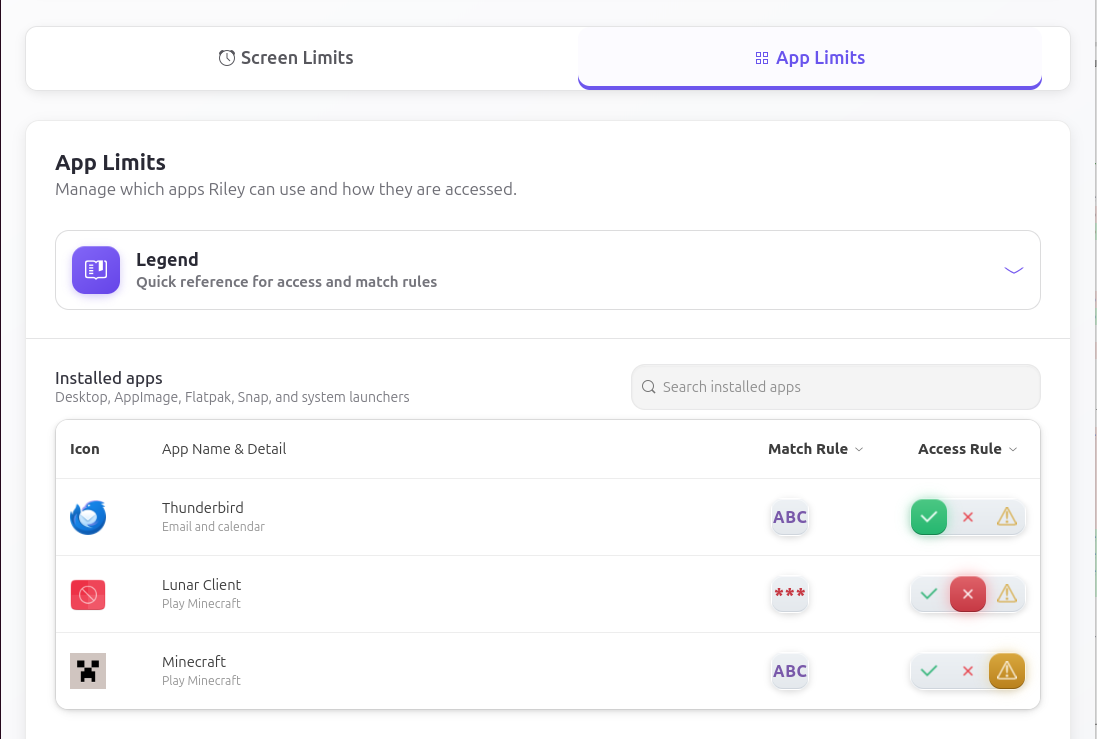
Select a rule to apply it. There is no Save button. If you newly block an app that the selected child is using, that app closes in all of that child's signed-in sessions. Apps used by other people stay open.
Save work before blocking an app. This can close matching apps on every desktop where the selected child is signed in. If a change fails, check the reported status.
App rules work even when the child's screen-time limit is off.
App matching
The catalogue includes supported native apps, Snap, Flatpak, and AppImages, including apps installed only for the selected child. The app needs an identifiable launcher target; a packaging format alone does not make every launcher supported. Matching and access are separate choices: first decide which target the rule covers, then choose Always Allowed, Soft Blocked, or Hard Blocked. There are no separate per-app time quotas.
Most people can keep the suggested match rule:
- Precise execution path matches the app's current installed file.
- Pattern Match may be offered for versioned AppImage files. It can keep matching supported new versions stored in the same folder.
For example, an AppImage update can replace Lunar Client-3.7.17-ow_GUID.AppImage with Lunar Client-3.7.20-ow.AppImage. The same filename pattern, Lunar Client-*.AppImage, matches both in the same application folder. These filenames illustrate matching; they are not a compatibility certification for every Lunar Client version.
You can edit a suggested pattern or reset it to the default. Patterns support * and ? in the filename within the same canonical directory. They do not recursively follow changing directory trees. Check the match shown after reopening App Limits: for some apps, a suggested pattern can reappear despite a saved precise choice.
For supported native apps, the rule covers the same executable opened from the app grid, a shortcut, a file manager, or a command. App Limits controls the supported app selected in the Parent App. It does not filter websites or content inside an app, control another device, or promise to block renamed or separately copied programs and scripts or unsupported launchers.
Oh No! uses AccountsService and Malcontent and adds per-child native execution rules through fapolicyd. Its supported AppImageLauncher handling covers relevant reads as well as execution. Relevant restrictive app changes close matching apps across the selected child’s sessions; other users’ apps stay open. If a native rule cannot be represented, check the reported affected app: an omitted rule can leave that app or updated version unrestricted.
See the GNOME comparison and release-pinned sources for the additional enforcement, shared infrastructure, and coverage limits.
Request Extra Time
A child whose screen-time limit is on can request extra time in either of two places:
- Before time runs out — from the child's desktop: select the remaining-time control in the top panel on the unlocked desktop. The child's account is filled in automatically and cannot be changed.
- After lockout or before sign-in — from the request station: use the OS's switch-user/sign-in route and choose the dedicated product request account. Select the child on the request form. The request station does not provide a general desktop or Parent App access.
The timer does not appear on the lock screen. Do not sign out of the child's retained session to reach the request station. A parent cannot directly add time in the Parent App.
On the request screen:
- Choose the child if the request was opened from the sign-in screen.
- Choose the parent who will approve the request.
- Choose a listed duration, Rest of the day, or Custom value. A custom request can be from 0.1 through 1440 minutes.
- Decide whether to turn on Allow soft blocked apps.
- Select REQUEST (named Request access for assistive technology).
- The chosen parent enters their password in the system authentication prompt.
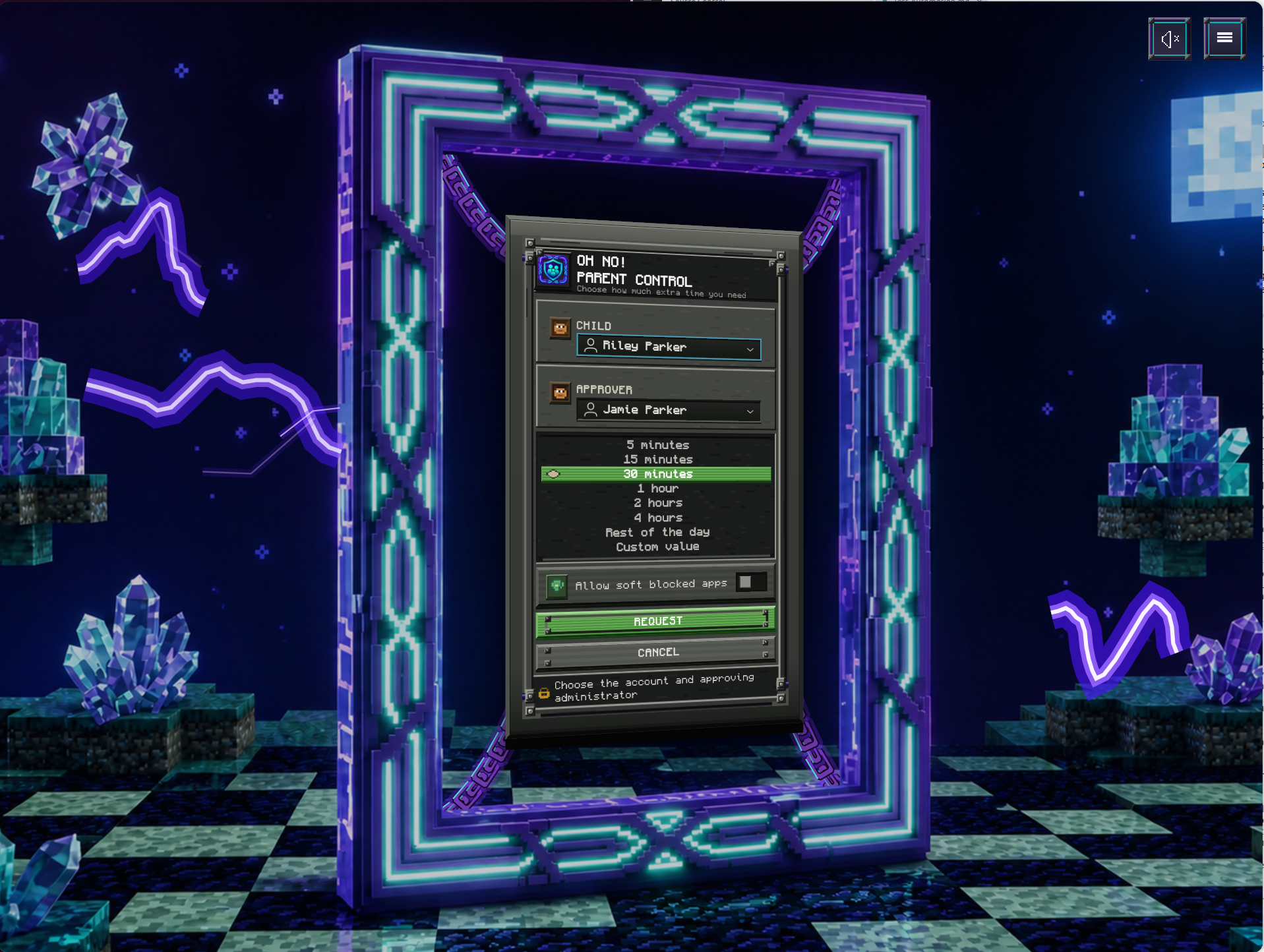
This earlier screenshot uses fictional accounts. The current shared request form has the same request choices; its footer now estimates the time available if approved. Select any screenshot to enlarge it.
The password is handled only by the system authentication prompt. Oh No! Parent Control does not receive, store, or display it. Approval applies only to the request shown and does not give the child administrator access.
After approval at the request station, it briefly confirms approval and returns to sign-in. Choose the child's account, then unlock the retained session or sign in normally. An eligible parent account must be enabled for sign-in; the parent's desktop does not need to stay unlocked.
Choosing “Allow soft blocked apps”
When it is on, soft-blocked apps can be opened for that approved period. Approving with Allow soft blocked apps does not close any already-open apps, including an already-open hard-blocked app. Hard-block rules still prevent new launches.
When it is off, both hard- and soft-blocked apps remain blocked. If the child already has any blocked apps open, those apps close before the extra time begins.
Save work before approving without soft-app access. Blocked apps can close on every desktop where the selected child is signed in. Other users' apps stay open.
The request screen remembers the last duration, custom value, approving parent, and soft-app choice for each child.
How extra time is added
A fixed-duration approval adds the requested duration to whichever currently gives the child more usable time: unused daily time or an earlier extra-time approval. The daily allowance and existing grant are not themselves added together.
These values are measured at the same instant:
| Daily time left | Existing grant left | Usable time now | After approving 15 more minutes |
|---|---|---|---|
| 40 minutes | 10 minutes | 40 minutes | 55 minutes |
| 10 minutes | 40 minutes | 40 minutes | 55 minutes |
| 0 minutes | 20 minutes | 20 minutes | 35 minutes |
The request footer estimates time if approved. It refreshes while waiting and may change before actual approval. An unavailable preview does not prevent a request. The Parent App shows usable time now, rather than this approval estimate.
Choosing Rest of the day provides access until the computer reaches its next local midnight.
Rest-of-day requests show access until midnight instead of using fixed-duration addition. Grants count down with elapsed time and can expire while the computer is locked or the child is away; they are not a bank of active-use minutes that pauses on lock.
When an approval ends
When usable time reaches zero, the child's desktop locks; this does not itself close the apps in that session. Before the child next uses a new or unlocked session, the app checks the current approval. If the previous approval is still expired, normal hard and soft blocks are restored and the child's blocked apps close. If a new approval is already active, its chosen app access applies. A new approval that allows soft-blocked apps keeps those apps available and does not close open apps when the child returns.
Cancelled or denied requests
- Cancelling the system password prompt returns to the request form.
- An incorrect password shows Request denied and leaves the choices available for another attempt.
- Cancel or Escape closes the form on the child's desktop. On the dedicated request screen, it returns to sign-in.
- After approval, the desktop form closes. The dedicated request screen briefly confirms approval, then returns to sign-in.
Revoke Extra Time
To remove an active one-time approval:
- Open the Parent App and choose the child.
- Select Revoke one-time grant.
- Read the warning and confirm.
Revoking removes the child's extra time and temporary soft-app access. The child's running blocked apps close. Their unused daily allowance is not changed, and other users are not affected. If no daily time remains, the child's desktop locks.
Save work before revoking extra time. Blocked apps can close on every desktop where the selected child is signed in. Other users' apps stay open.
Feedback and diagnostic logs
- Open Feedback in the Parent App, Child App, or Kiosk App. All three apps also offer editable error reports. Opening feedback or an error report sends nothing. Review and edit the message before choosing to send; never include a password.
- Add a reply email only if you want a response. Leaving it blank does not guarantee anonymity: your message, filenames, or attachments may identify you.
- Review the proposed diagnostic attachment. Logs are included by default when available. In the Parent App or Child App, use Download to save a ZIP for inspection, or Remove logs to send without it. The archive uses the three newest available local log dates, which may not be consecutive days.
- In the Parent App or Child App, add any optional files and review their names and contents for personal information. The dedicated Kiosk App has no arbitrary file attachments, diagnostic ZIP saving, or external privacy-page launch. It shows an in-app privacy disclosure and can attach the diagnostic ZIP provided by the broker.
- Select Send Feedback to submit the report. Cancelling an editable error report before sending sends nothing. Follow the displayed sending/result status; closing a feedback dialog may leave sending and retries active in that app process.
Local administrators, eligible children, and the configured kiosk account can obtain the same diagnostic archive through the app's broker. It can contain logs from all four product components: Parent App, Child App, Kiosk App, and broker. This authorized diagnostic access does not grant direct access to protected log files or saved parent-control preferences.
Drafts, attachment contents, and pending submissions stay in the memory of the relevant Parent App, Child App, or Kiosk App process. Automatic retries use the same submission for up to 15 minutes. Exiting that app process discards its draft and pending retries; there is no saved outbox. Closing a dialog is not the same as exiting the app process. Cancelling or exiting cannot recall a submission already accepted by the service.
Where file attachments are available, you can attach up to five user files, at most 5 MiB each. An attached diagnostic ZIP must be at most 2 MiB, and all attachments including logs must total at most 8 MiB. These are upload limits; a separately saved local diagnostic export can be larger. If logs cannot be prepared or are too large, choose Send without logs, or remove the logs before sending.
Feedback is emailed to support without a guaranteed deletion deadline. Read the optional-feedback disclosure before sending, or the in-app disclosure in the dedicated kiosk. If an app cannot open or sending is unavailable, use product support from a regular browser session.
Remove the app
Leave the request-station session before removing the app. Ask a local administrator to remove the package using the OS's package manager, then follow the OS's reboot notice.
Ordinary package removal clears product-enforced restrictions and removes the package-created request station, while retaining central saved settings and product troubleshooting logs for a later reinstall. Purging the package additionally deletes the product's central saved data and logs.
Purge does not erase the OS's own account or usage information, journals, crash records, separately saved diagnostic ZIPs, or feedback already delivered to support. Remembered request selections stored in a child's local user state can also remain; purge does not remove that child's local files. Removing the package-created request account's home does not erase child users' preferences. See local retention and your choices.
Common Questions
Why is the remaining-time control not visible?
It appears only on an unlocked child desktop while screen-time control is enabled and usable time remains. It is not shown on the sign-in or lock screen.
Why does the request screen say the screen limit is not enabled?
Extra-time requests are available only when Screen Time Limit is on for that child. An administrator can enable it in the Parent App.
Why is a parent missing from the approver list?
An approving parent must be a current local administrator account enabled for sign-in. “Unlocked” here means the administrator account is not disabled for sign-in; it does not mean the parent's desktop must be unlocked.
Why is an app missing from App Limits?
First confirm that the correct child is selected. The list reflects apps available to that child, including apps installed only for that account. Apps that are not supported launchable applications may not appear.
Why did an app close?
The selected child's running blocked apps can close when an app rule becomes more restrictive, when extra time is approved without soft-app access, when screen-time settings restore saved app rules, or when extra time is revoked. They can also close when the child returns after an expired approval with no active replacement. See when an approval ends. Apps belonging to other users are not closed.
Do settings survive a restart?
Yes. Screen-time choices, app rules, and remembered request options remain after app restarts, sign-out, and reboot.
What should I do if a change fails?
A failed change is not shown as successfully saved. The app attempts to restore the previous working settings, but it cannot reopen apps already closed. If it cannot close every required blocked app, the action fails and the app blocks remain in place. Check the reported status before trying again, and contact support if the problem continues.
Wait for any current change to finish. Use Feedback and diagnostic logs to report the action you attempted and the message shown, or contact product support if the Parent App cannot open. Never send anyone a password.