Rules that keep matching after updates
Lunar Client changes its AppImage filename when it updates. A same-folder pattern such as Lunar Client-*.AppImage can keep supported new versions covered by your rule.
See the Lunar Client example
Free, open-source Linux parental controls
Extends GNOME’s parental-control foundation (Malcontent 0.14.0+) with app patterns, native execution enforcement, and combined time/app approvals.
Homework time remaining
00:47
Games
Blocked until approved
More than a screen-time timer: manage the apps your child actually uses, keep rules useful after supported AppImage updates, and approve homework time or gaming time in one request.
Lunar Client changes its AppImage filename when it updates. A same-folder pattern such as Lunar Client-*.AppImage can keep supported new versions covered by your rule.
See the Lunar Client exampleChoose from supported native apps, Snap, Flatpak, and AppImages, including apps installed just for your child. Manage matching and access from one Parent App.
Explore app coverageSupported native targets stay blocked through their usual app-grid, shortcut, file-manager, and command launch routes. Relevant rule changes also close matching apps running under your child’s account.
See how enforcement worksSame-folder AppImage filename patterns
Some AppImages put a version number or integration suffix in their filename. A rule tied to the old file can miss its replacement. Oh No! suggests patterns for supported versioned AppImages; you can edit the pattern or reset it to the default.
| AppImage filename | One rule covers both |
|---|---|
Lunar Client-3.7.17-ow_GUID.AppImage | Lunar Client-*.AppImage |
Lunar Client-3.7.20-ow.AppImage | Lunar Client-*.AppImage |
Choose the precise executable or the versioned filenames your rule covers.
Choose Always Allowed, Soft Blocked, or Hard Blocked independently of matching.
Lunar Client → Pattern Match → Soft Blocked → available when a parent approves game access.
Patterns support * and ? in the filename, within the same canonical folder. Moving the app to another folder needs a matching rule for that location. Coverage depends on the supported launcher and target; patterns do not recursively follow every moved or renamed program.
Read the matching guideSupported native, Snap, Flatpak and AppImage app controls
App Limits discovers identifiable apps for the selected child, including child-only installations. It uses the child’s launcher catalogue rather than the parent’s personal app list. Installation format alone does not guarantee that every launcher is supported.
Match a supported installed executable, including its usual command and file-manager launch routes.
Recognize supported Snap launchers by their individual public app command, rather than treating the shared snap launcher as one app.
Recognize supported Flatpak application references, including apps installed for the child.
Use a precise target or a same-folder pattern for supported versioned files. Lunar Client illustrates why filename patterns matter.
App Limits means app access rules and executable matching. It does not set separate time quotas for individual apps. Screen Limits controls the child’s overall usable computer time.
Explore App Limits in the guidePer-child native execution enforcement
Oh No! uses GNOME’s parental-control foundation and adds enforcement for supported native app targets. Rules cover the same executable launched from the app grid, a desktop shortcut, the file manager, or a command.
Newly blocking an app, changing it from soft to hard blocked, approving homework-only access, or revoking a grant can close matching blocked apps across the selected child’s signed-in sessions. Other users’ apps stay open. Save your child’s work before changing access.
The GNOME panel shows remaining time and opens the child’s request form. When usable time runs out, the screen locks and the session stays open. Sign-in and unlock checks enforce available time; the restricted request station provides an approval route before sign-in or after lockout.
Oh No! builds on AccountsService and Malcontent, integrates with GNOME Shell, PAM, and Polkit, and adds a privileged broker with per-child native execution policy through fapolicyd. Supported AppImageLauncher handling also denies relevant reads of blocked app files, covering its in-memory runtime route.
Inspect the application policyApproval with or without soft-app access
A single request combines computer time with the choice to allow all soft-blocked apps or keep them blocked. Hard-blocked launches remain blocked. Daily allowance and approval-only mode let you choose how much access needs a parent’s OK.
| Family decision | Parent action | Result |
|---|---|---|
| Homework now | Approve with soft apps excluded | School apps available; ask-first games blocked. |
| Gaming allowed | Approve with soft apps included | All soft-blocked apps available; hard-blocked launches stay blocked. |
| Return to homework | Approve without soft apps | Restore blocks and close matching blocked apps. |
| End approved access | Revoke the one-time grant | Remove approved time and temporary app access. Unused daily time remains. |
| Ask before all computer use | Set zero daily minutes | Computer access requires an active approval. |
Choose a preset, a custom duration, or the rest of the day. The request shows an estimate if approved and remembers selections. Parents approve through the OS password prompt; the child receives no administrator access.
Grant time counts elapsed time, including breaks and time spent locked. If daily time remains, natural grant expiry alone does not immediately restore soft-app blocks; session-entry checks or a restoring action apply them. Locking does not pause games or save work.
Follow the quick start and request walkthroughCompared with the official GNOME GUI
GNOME 50 already offers daily limits and extra-time approval. Oh No! extends that foundation with broader app management, editable filename patterns, conditional app access, native execution enforcement, and revocation. Those are substantial advantages for families managing Linux games.
| Capability | GNOME Parental Controls app | Oh No! Parent Control |
|---|---|---|
| Individual app catalogue | Flatpak and explicitly opted-in applications in the upstream selector. | Broader supported native, Snap, Flatpak and AppImage catalogue, discovered for the selected child. |
| AppImage filename-pattern editor | Not provided by the reviewed official GUI. | Suggested, editable same-folder filename patterns for supported AppImages; reset to default. |
| Approve time and conditional app access together | Extra screen time is available; no combined soft-app choice in the reviewed official GUI. | Approve homework-only time or include all soft-blocked apps, while retaining hard launch blocks. |
| Additional native execution enforcement | The reviewed frontend uses the standard desktop filtering integrations; it provides no equivalent added fapolicyd policy. | Per-child fapolicyd policy for supported native targets, including usual file-manager and command launch routes. |
| Revoke approved time and app access | No equivalent combined revocation control provided by the reviewed official GUI. | Revoke the one-time grant and temporary app access; unused daily time remains. |
Oh No! Parent Control’s automated tests cover core logic, desktop integration, and end-to-end family journeys. The live count refreshes daily from the public test inventory on GitHub.
Available for Ubuntu 26.04 LTS Desktop (amd64 / x86-64) (Fedora 44 coming soon)
Want your distro / DE supported? Feature needs? Let us know!
sudo add-apt-repository ppa:puffyslipperstechllc/oh-no-parent-control
sudo apt update
sudo apt install oh-no-parent-controlRestart your computer after installation to finish setup.
Install with the commands above and restart. Then use the graphical Parent App to choose your child, set screen-time limits, and choose app rules. The walkthrough shows how to allow homework now and games later; everyday settings and approvals do not need terminal commands.
 Oh No! Parent Control app and select your child’s standard account.
01
Give computer time with games blocked.
Oh No! Parent Control Kiosk account at sign-in. Choose your child, the approving parent, and a duration.School apps open; Soft Blocked games stay blocked.
02
Give computer time with games allowed.
Oh No! Parent Control Kiosk account at sign-in. Choose your child, the approving parent, and a duration.Soft Blocked apps can open. Hard Blocked apps stay off-limits.
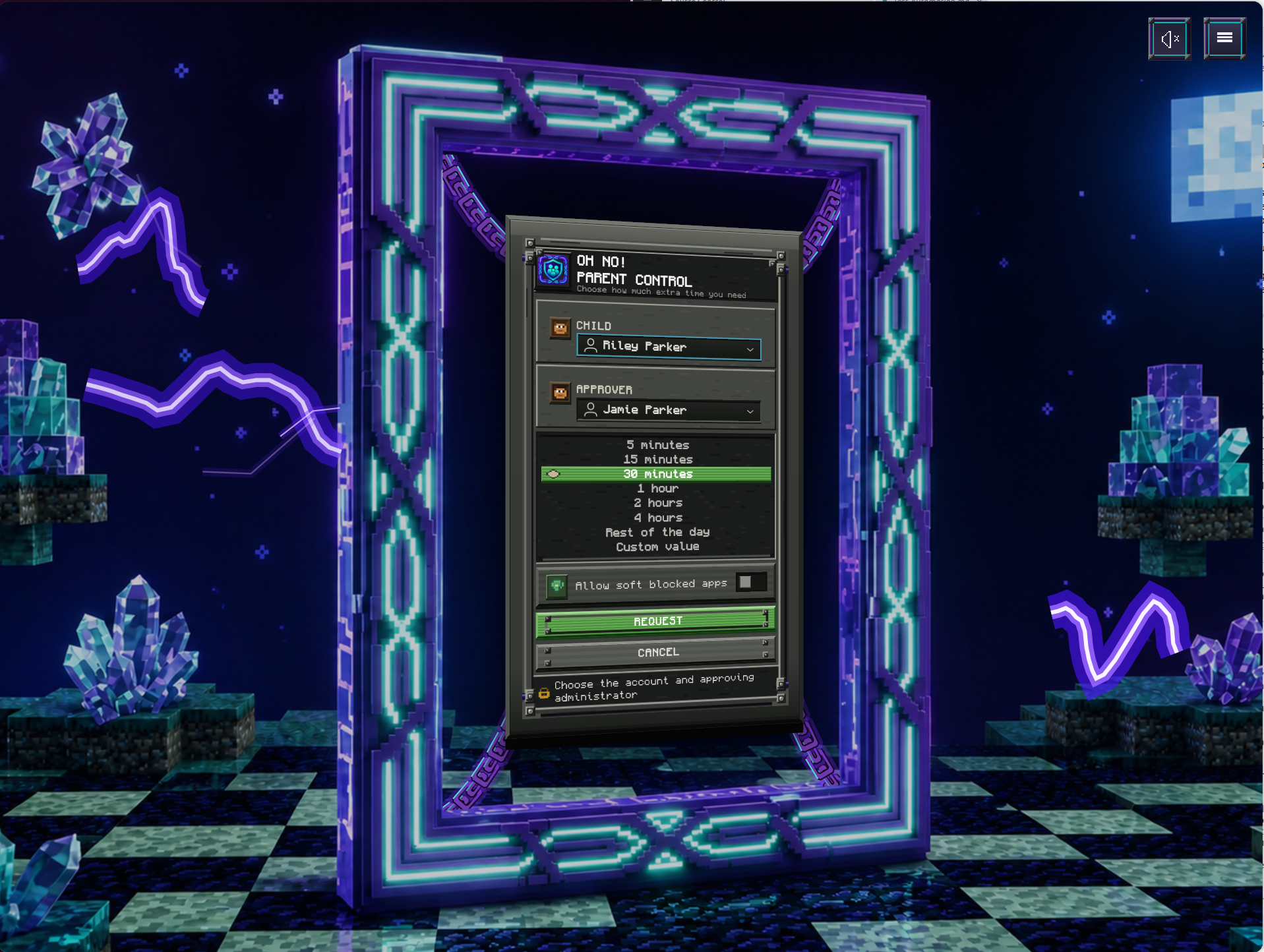
Sample accounts in an earlier screenshot. The current request footer shows a time estimate if approved. Select the image to enlarge.
When plans change
Finishing an assignment or asking for another round? Use the same request, and choose whether games belong in that extra time.
While time remains, select the desktop timer. Before sign-in or after lockout, use the “Oh No! Parent Control” Kiosk account at sign-in and choose the child.
Review the duration, time estimate, and “Allow soft blocked apps” choice: off for homework, on to include games. Approve in the OS password prompt.
On the desktop, approved time is ready to use. From the “Oh No! Parent Control” Kiosk account, return to sign-in and choose the child’s account to unlock or sign in.
Remaining time stays in the panel, with a second-by-second countdown during the final minute.
When usable time runs out, the screen locks and the desktop session stays open. Locking does not pause games or save work, so finish and save before the timer ends.
Approve a new request with “Allow soft blocked apps” off to keep games blocked again. Running blocked apps close, so save progress first. The request remembers the last choice; check it each time.
Your household rules
In the Parent App, choose your child and open App Limits. Match the executable, then choose its access rule: Always Allowed, Soft Blocked, or Hard Blocked. These are access rules, not separate per-app time quotas.
Use this for apps your child needs for homework. The app can open whenever the child has computer time; it does not bypass the screen-time limit.
Use this for supported games and launchers that need a parent’s OK. They stay blocked during ordinary daily time or homework-only approvals. An approval with “Allow soft blocked apps” on temporarily allows all of them.
Use this for apps your child should not open, even during game time. Extra-time approval cannot allow them; a parent must change the rule in App Limits.
Set Daily Time Allowance in Screen Limits for computer time your child can use without asking each day. Soft-blocked games stay blocked until you approve access. Leave Screen Time Limit on to use extra-time requests.
In the Parent App, “Revoke one-time grant” removes approved extra time and game access. Running blocked apps close, so save first. Unused daily time stays available; if none remains, the screen locks.
App rules cover supported app targets; they do not filter web content or control other devices, and do not promise to block separately copied or renamed programs or unsupported launchers.
Read about app limits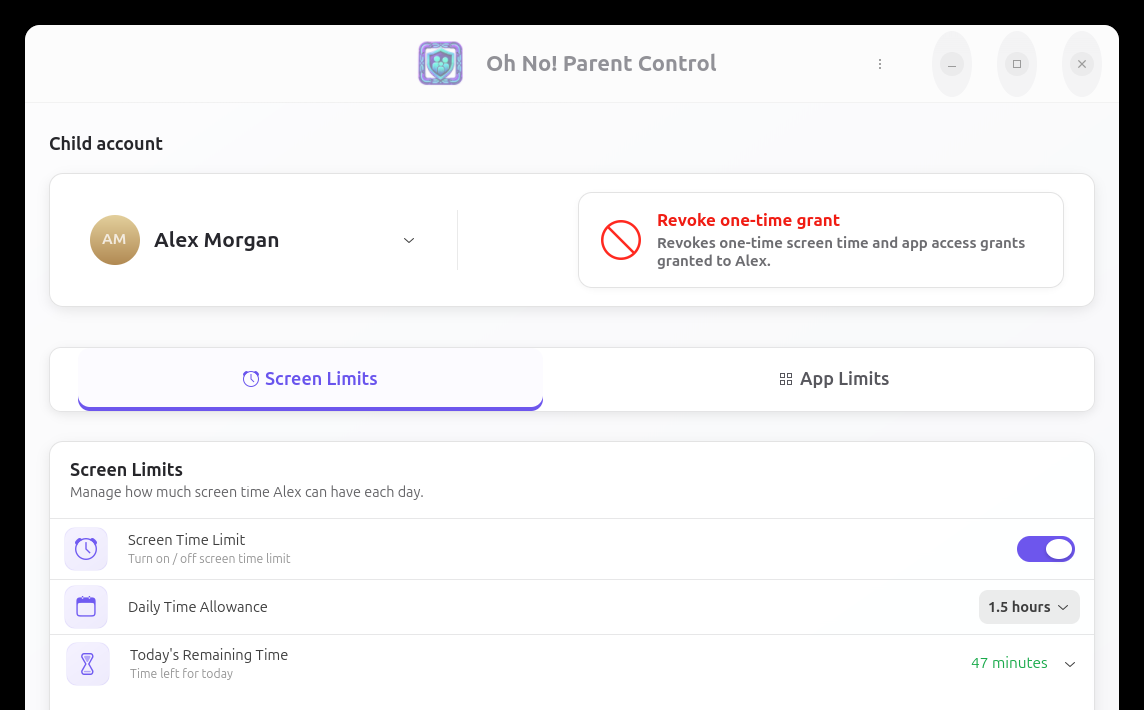
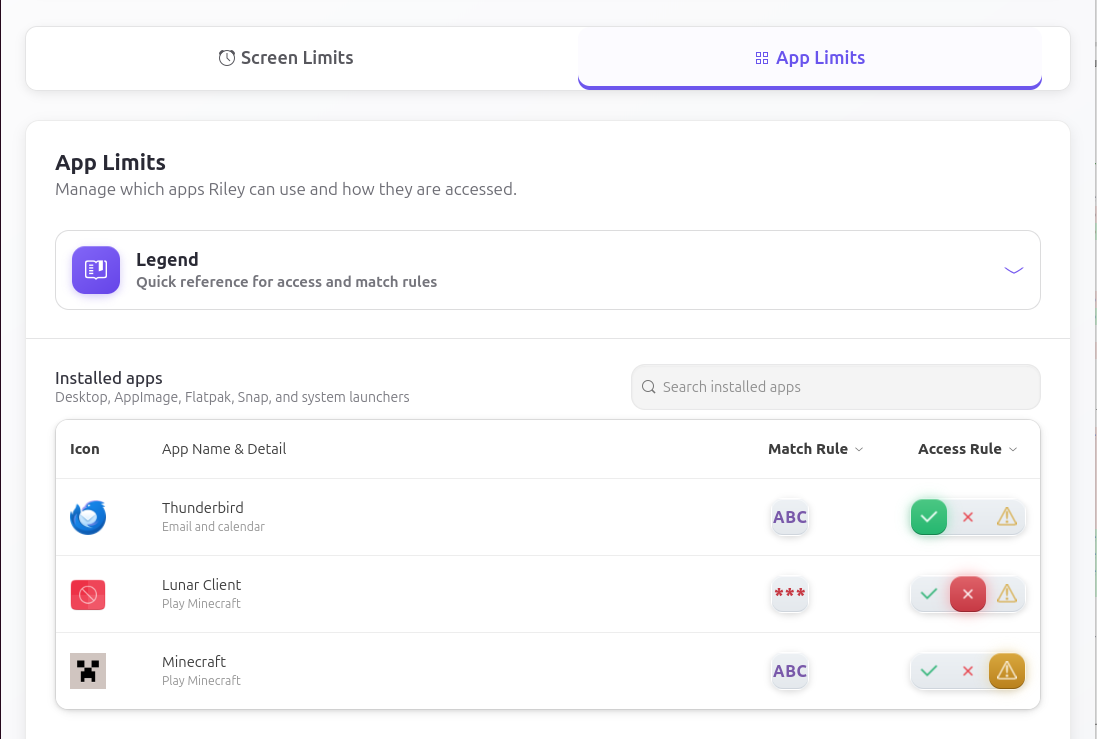
Sample accounts are shown. Names and available apps will be different on your computer. Select a screenshot to enlarge.
Private by design
The app is designed to do its job locally, without turning family routines into somebody else’s data.
Parent passwords are entered in the system authentication prompt. The child app never receives, stores, or displays them.
Screen-time and app controls work locally, without an online account or internet connection. Optional feedback sends the message, attachments, and diagnostic logs you choose to include to support. There is no cloud dashboard, advertising, analytics, or profiling in the installed app.
A parent approves only the request on screen. Approval does not open parent settings or hand over administrator access.
Oh No! Parent Control provides free, open-source Linux parental controls for families sharing a Linux computer. A graphical Parent App lets parents set daily screen-time allowances and rules for supported apps. Children can ask for extra time, which a parent approves using the OS authentication prompt. Controls work locally and build on the Malcontent parental-control system.
Supported AppImages can be managed in App Limits. For versioned filenames, Oh No! can suggest a same-folder pattern such as Lunar Client-*.AppImage. A filename pattern can cover supported replacements when version numbers or integration suffixes change. Edit the pattern or reset it to the default, then choose Always Allowed, Soft Blocked, or Hard Blocked. Patterns stay within the same canonical directory; they do not follow every moved or renamed copy.
Compared with the official Malcontent 0.14.0 frontend, Oh No! provides a broader supported native/Snap/Flatpak/AppImage catalogue, editable AppImage filename patterns, conditional app permissions tied to time approval, additional native execution enforcement, running-app handling, combined revocation, and a restricted request station. GNOME 50 already supports extra screen time. The distinction is the richer app controls and workflow exposed by Oh No!’s interface; both use the Malcontent backend foundation.
No. App Limits controls which supported apps may run and how their executable targets are matched. Screen Limits controls the child’s overall usable computer time. A soft-app-inclusive approval allows all soft-blocked apps; it does not create individual per-game time counters.
For supported native targets, Oh No! adds per-child fapolicyd execution policy covering the same executable opened through the app grid, a shortcut, the file manager, or a command. Relevant restrictive changes also close matching apps owned by the selected child across their sessions, while other users’ apps stay open. This covers supported targets, not universal control of renamed copies, shared-interpreter scripts, or unsupported launchers.
The fully automated test suite grows with product changes and new features, checking new capabilities while guarding against regressions. It spans core logic, desktop interactions, installed-system behavior, and end-to-end family journeys. The public, generated test inventory on GitHub tracks ready and pending cases. The product page reads its latest counts directly; ready means runnable and passed, and inventory counts are not code-coverage percentages.
Yes. Oh No! Parent Control is free to install and use, with source code published on GitHub under the GNU General Public License version 3 (GPLv3). Install the Linux package from the project's public PPA on Launchpad. Screen-time and app controls work locally without an online account or internet connection; downloading and updating the package requires internet access.
The installation instructions use three terminal commands to add the PPA and install Oh No! Parent Control, followed by a restart. After installation, everyday use is graphical: choose a child in the Parent App, set a daily allowance, and choose app rules. Children request extra time on screen; parents approve with their OS password. Routine settings and approvals do not require terminal commands, an online account, or a cloud dashboard. The setup walkthrough includes a video and screenshots.
Set a daily allowance for each child, or choose zero daily minutes to require parent-approved time. Children can request extra time from their desktop or the dedicated request account at sign-in. A parent approves through the OS authentication prompt. When usable time runs out, the child's screen locks and their session stays open. Locking does not pause games or save work.
In App Limits, leave school apps Always Allowed and set supported games and launchers, such as Minecraft or Steam when listed, to Soft Blocked. With Screen Time Limit on, approve a time request with “Allow soft blocked apps” off for homework, or on to allow all soft-blocked apps for the approved period. Hard Blocked apps cannot be allowed by an extra-time request. App rules cover supported apps, not website content or every game launched through another app.
Screen-time and app controls work locally without an online account or internet connection. Optional feedback needs a connection. Oh No! Parent Control does not filter website content, provide a cloud dashboard, or control other devices. App rules do not promise to block separately copied or renamed programs or unsupported launchers.
Help when you need it
Find setup help, see what’s new, or review the full privacy notice.
Quick start, screen limits, app rules, extra-time requests, revoking time, and common questions.
Browse the complete guideNew features, improvements, and bug fixes, with release notes for every version.
Explore the release notesA plain-language explanation of what stays on the computer, who can see it, and the choices families have.
Read the privacy notice